



Download FoxSaver – Free Firefox Screensaver Extension
Overview: Turning Your Browser Into a Dynamic Screensaver
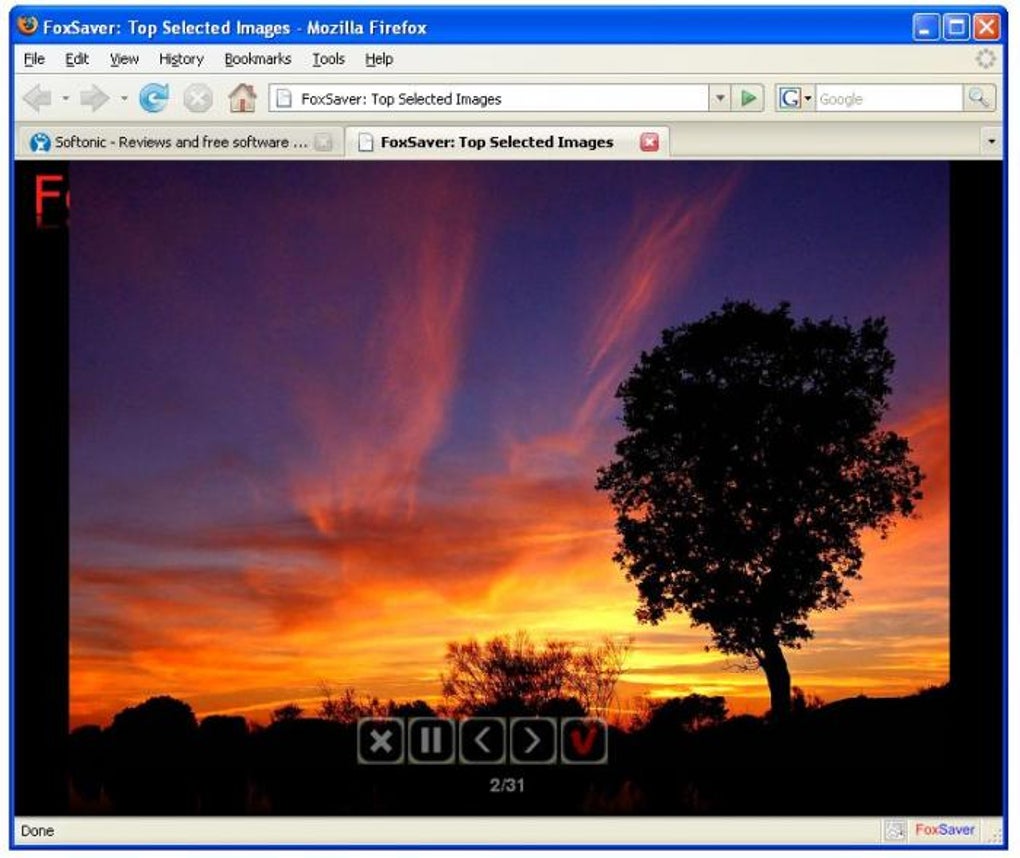
FoxSaver reimagines the classic screensaver concept by integrating it directly into Mozilla Firefox. Instead of juggling a separate screensaver program and a web browser, FoxSaver lets the browser double‑duty as a visual idle display. When your computer remains inactive for a user‑defined period, the extension automatically launches a full‑screen photo slideshow that behaves like a traditional screensaver. The idea behind FoxSaver is simple yet powerful: leverage the browser’s rendering engine, caching capabilities, and access to local files to deliver a seamless, lightweight screensaver experience without the need for extra installations.
From a user‑experience perspective, FoxSaver feels native to Firefox. It respects your privacy settings, runs only when the browser is open, and can pull images from three primary sources: the browser’s own cache (so you can showcase webpages you’ve visited), pictures stored locally on your hard drive, and a curated gallery provided by the extension’s developers. While the developer‑supplied gallery cannot be previewed before selection, it offers a quick way to get started if you lack personal images. Configuration options let you set the idle timeout, choose which image sources to prioritize, and decide whether to loop the slideshow or stop after a single pass. Although transition effects are limited, the simplicity of the tool makes it an attractive option for users who want a quick visual treat without the overhead of a full‑featured screensaver suite.
Security is another cornerstone of FoxSaver. Because the extension runs inside Firefox, it inherits the browser’s sandboxed environment, reducing the risk of malicious code execution. Updates are delivered through Mozilla’s official Add‑ons portal, ensuring that you receive vetted patches and new features directly from the developer. Whether you’re on a Windows PC, a macOS laptop, or even a Linux distribution that supports Firefox, FoxSaver works the same way, making it a versatile addition to any desktop setup.
Key Features of FoxSaver
- Integrated Screensaver Mode: Launches a full‑screen photo slideshow automatically when the system is idle.
- Multiple Image Sources: Pulls pictures from Firefox’s cache, local hard‑drive folders, and a developer‑curated gallery.
- Customizable Idle Timer: Users can set the inactivity period (from 1 minute up to 30 minutes) before the screensaver activates.
- Simple Configuration Panel: Easy‑to‑use settings page within Firefox’s Add‑ons manager for source selection and looping options.
- Low Resource Footprint: Runs inside the browser, avoiding the need for a separate background service.
- Secure Update Mechanism: Updates are delivered through Mozilla’s official repository, ensuring authenticity.
- Cross‑Platform Compatibility: Works on Windows, macOS, and Linux wherever Firefox is supported.
- Privacy‑First Design: No data is sent to external servers unless you deliberately upload images to the developer gallery.
Installation, Usage & Compatibility Guide
Getting FoxSaver up and running is a straightforward three‑step process that can be completed in under five minutes. First, open Firefox and navigate to the official Add‑ons page at https://addons.mozilla.org/en-US/firefox/addon/foxsaver/. Click the “Add to Firefox” button, confirm the permission prompt, and Firefox will automatically download and install the extension. No administrator rights are required on most systems, making it ideal for both personal and corporate environments where software installation may be restricted.
Once installed, you’ll find a new FoxSaver icon in the toolbar. Clicking the icon opens the configuration window where you can adjust the idle timeout, select image sources, and enable looping. For local images, simply click “Add Folder” and browse to the directory containing your photos. FoxSaver will index the folder and include those pictures in the slideshow. If you prefer to showcase images you’ve recently visited online, enable the “Cache Images” option, and the extension will automatically pull thumbnail snapshots from Firefox’s cache.
Compatibility is handled automatically by the Windows 10/11, macOS 10.15 or later, and major Linux distributions that support Firefox. Because the extension lives inside the browser, there’s no need for separate drivers or background services. However, a few prerequisites ensure optimal performance: keep Firefox updated to the latest stable release, and allocate at least 200 MB of free RAM for smooth image transitions. On older machines, you may want to limit the number of local folders to avoid excessive memory usage.
When the configured idle period elapses, FoxSaver takes over the screen, hides the taskbar, and begins the slideshow. To exit the screensaver, simply move the mouse or press any key—just like a traditional screensaver. If you need to pause or stop the screensaver manually, return to the toolbar icon and select “Disable Until Next Restart.” This level of control is particularly useful in office settings where you might need to temporarily keep the display active for presentations.
Pros and Cons
- Pros:
- Zero‑cost, free download with no hidden fees.
- Runs securely within Firefox’s sandbox.
- Supports local and cached images, offering great flexibility.
- Lightweight and does not drain system resources.
- Easy to install and configure for users of any technical level.
- Cons:
- Lacks advanced transition effects found in dedicated screensaver apps.
- Cannot preview the developer‑provided gallery before selection.
- Only works when Firefox is running; it won’t activate if the browser is closed.
Frequently Asked Questions
Do I need an active internet connection for FoxSaver to work?
No. FoxSaver can display images from your local hard drive and the browser cache without any internet access. An online connection is only required if you want to use the developer‑provided gallery.
Can I use FoxSaver on multiple computers with the same profile?
Yes. Since FoxSaver settings are stored in Firefox’s profile folder, syncing your Firefox account will carry the configuration to other devices where you have the extension installed.
Is there a way to set different image folders for different times of day?
FoxSaver does not currently support time‑based folder switching. You would need to manually change the folder selection in the settings panel.
Does FoxSaver affect my browser’s performance while browsing?
The extension runs idle and only activates when the system is inactive, so it has negligible impact on regular browsing performance.
How can I uninstall FoxSaver if I no longer need it?
Open Firefox’s Add‑ons Manager (Ctrl + Shift + A), locate FoxSaver, and click “Remove.” The extension and its settings will be deleted from your profile.
Conclusion: Should You Download FoxSaver?
FoxSaver fills a niche that many users didn’t even realize existed: a lightweight, browser‑based screensaver that showcases personal photos without the clutter of a separate application. Its seamless integration with Firefox, zero‑cost model, and focus on privacy make it an appealing choice for anyone who already spends a lot of time in the browser. While the lack of fancy transition effects and the dependency on Firefox being open are legitimate trade‑offs, the overall value proposition remains strong, especially for casual users and professionals who want a quick visual reminder of their favorite images.
If you’re looking for a secure, easy‑to‑install solution that turns idle moments into a personalized photo gallery, FoxSaver is worth a try. Simply head to the Mozilla Add‑ons store, click “Add to Firefox,” and enjoy a custom screensaver that reflects your style. Because it’s free and regularly updated, there’s little downside to giving it a spin.
Ready to transform your Firefox experience? Download FoxSaver now and let your browser do double duty as a beautiful, secure screensaver.
FoxSaver offers a clever solution for users who want a simple, free screensaver integrated directly into Firefox. The extension’s ease of installation, low resource usage, and ability to pull images from local folders and the browser cache make it a practical choice. Although transition effects are limited and the developer gallery cannot be previewed, the overall experience is smooth and reliable. Ideal for anyone seeking a lightweight, privacy‑focused screensaver.







